How to use:
The FILTER Button
The BLANCO Button
The UPLOAD Button
General Site Info
Weaselware:
Instructions
Advanced
Life advice:
Passwords
How to do:
The Platner Edge
A Drainboard
coming soon:
One weird trick to keep pieces from moving while milling sinks.
Suction cup companies hate it!
Also, TOP 10 ways to make banana bread from dried up old banana peels.
#8 will BLOW YOUR MIND
Okay, it's that once or twice a year where you get a platner edge job but you don't have CNC tools for it. You don't even have hand router tools for it. What do you do? Sacrifice another fabricator to the black lung? Nonsense. By following these easy, step by step instructions even you can do platner edge on the CNC with nothing but the calibration tool.
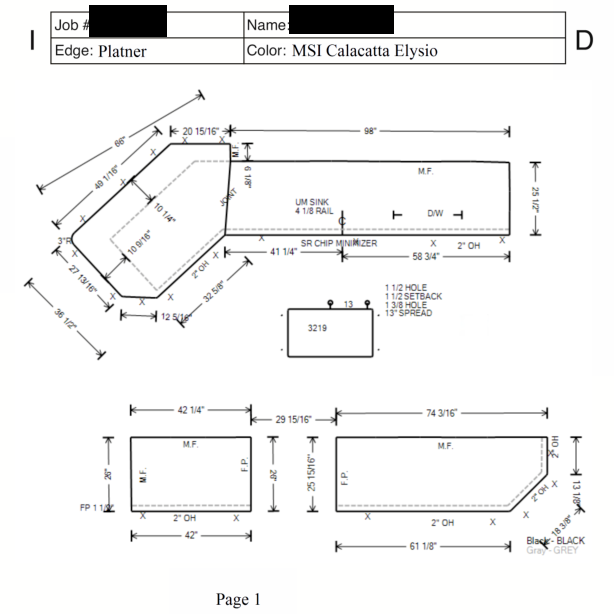
Alright, first of all, draw it up, make your oversized pieces or however you do it there and make your drawings for the CNC. I like to use colored layers but whatever. I'm using orange for profile, in this case platner, teal for joints, red for wall, and pink for flat polish. I already mirrored it because we'll be running it face down just like normal jobs.
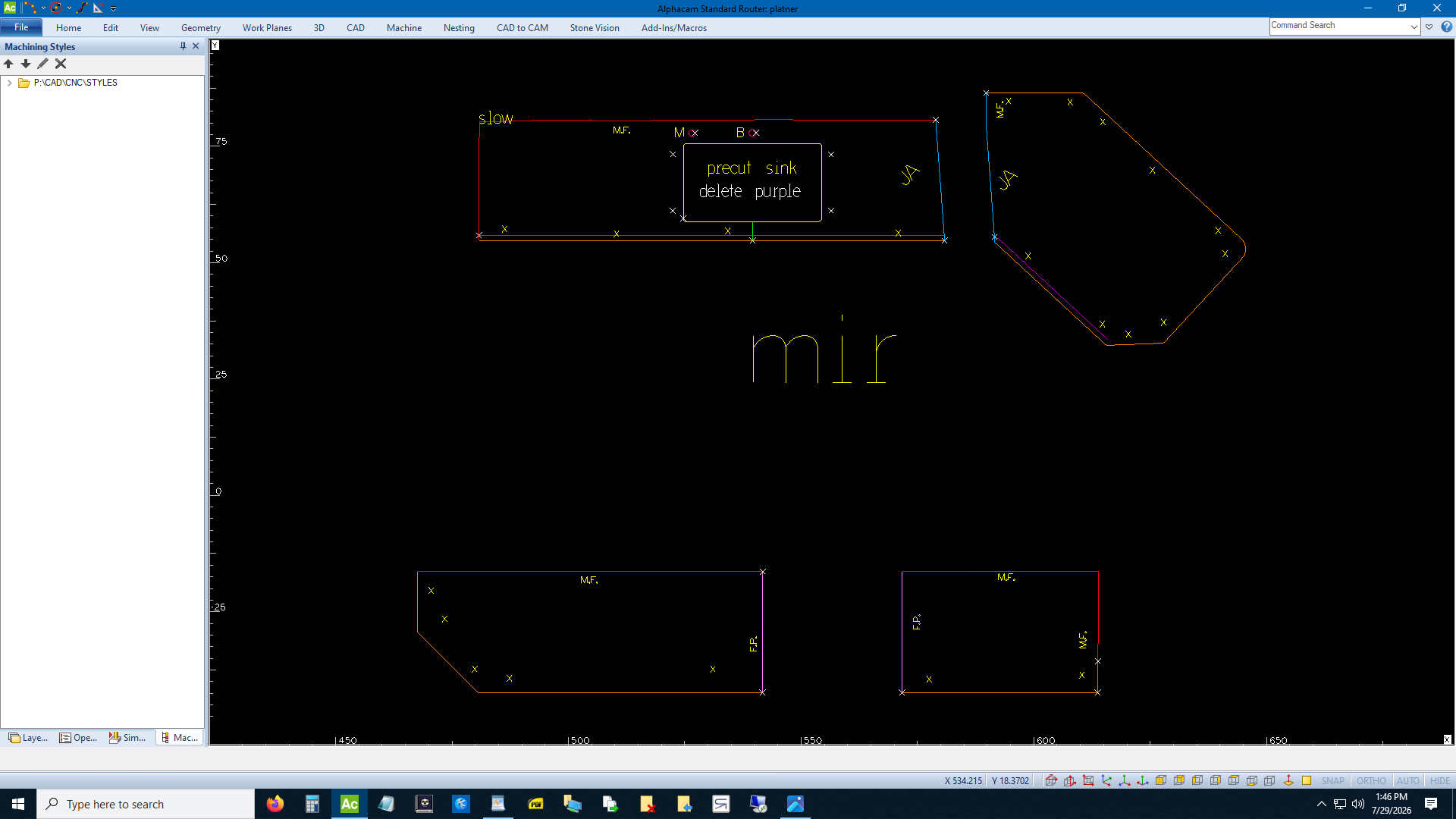
Let's just do the two easy pieces. Place your cups, you know the drill. Now extend the orange lines 4 inches so we don't have to use lead ins.
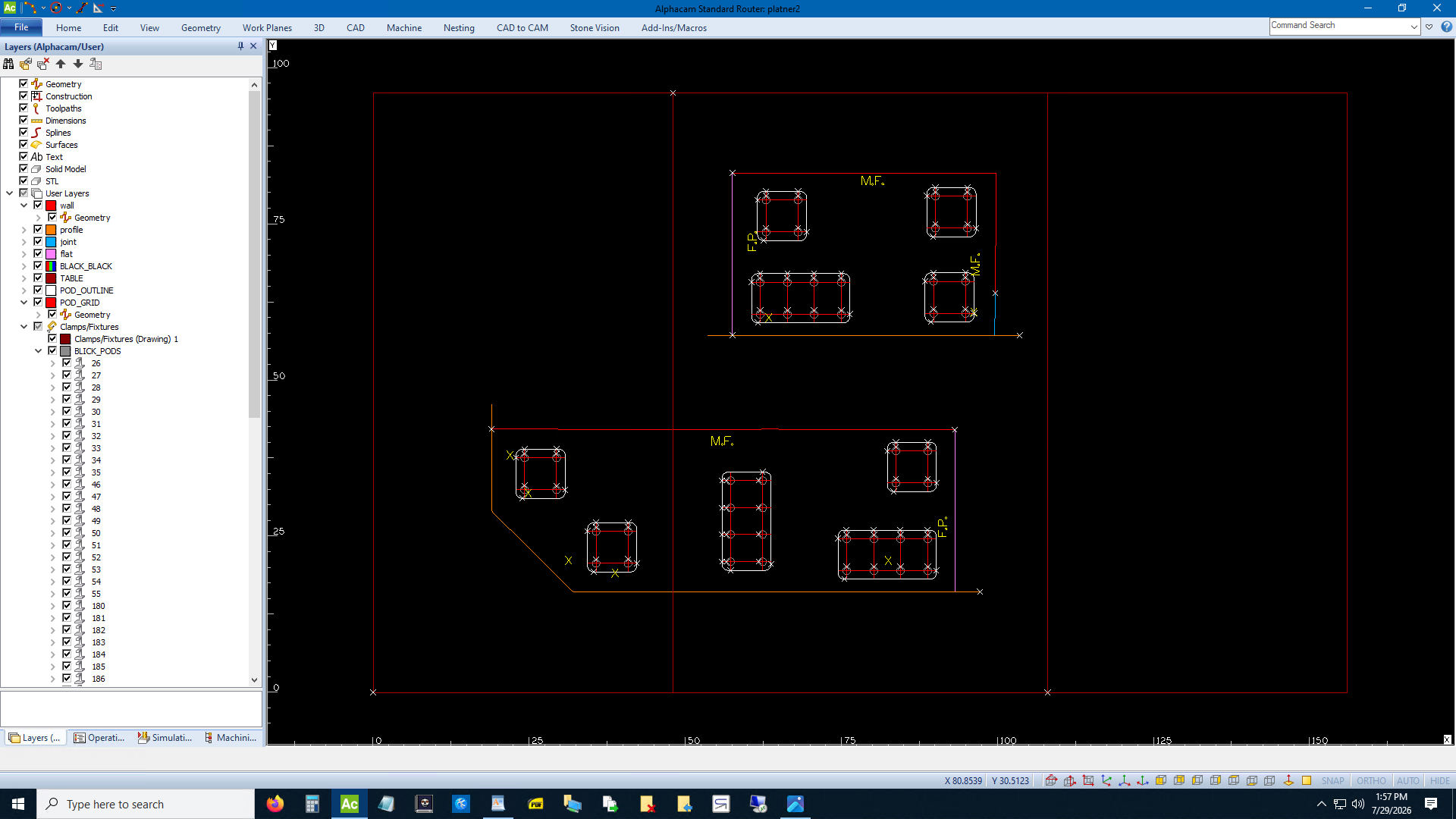
Apply your tools pretty much like normal. Put something on the platner edge to knock off the oversize if you cut pieces that way. I just run the joint tools on it. Whatever.
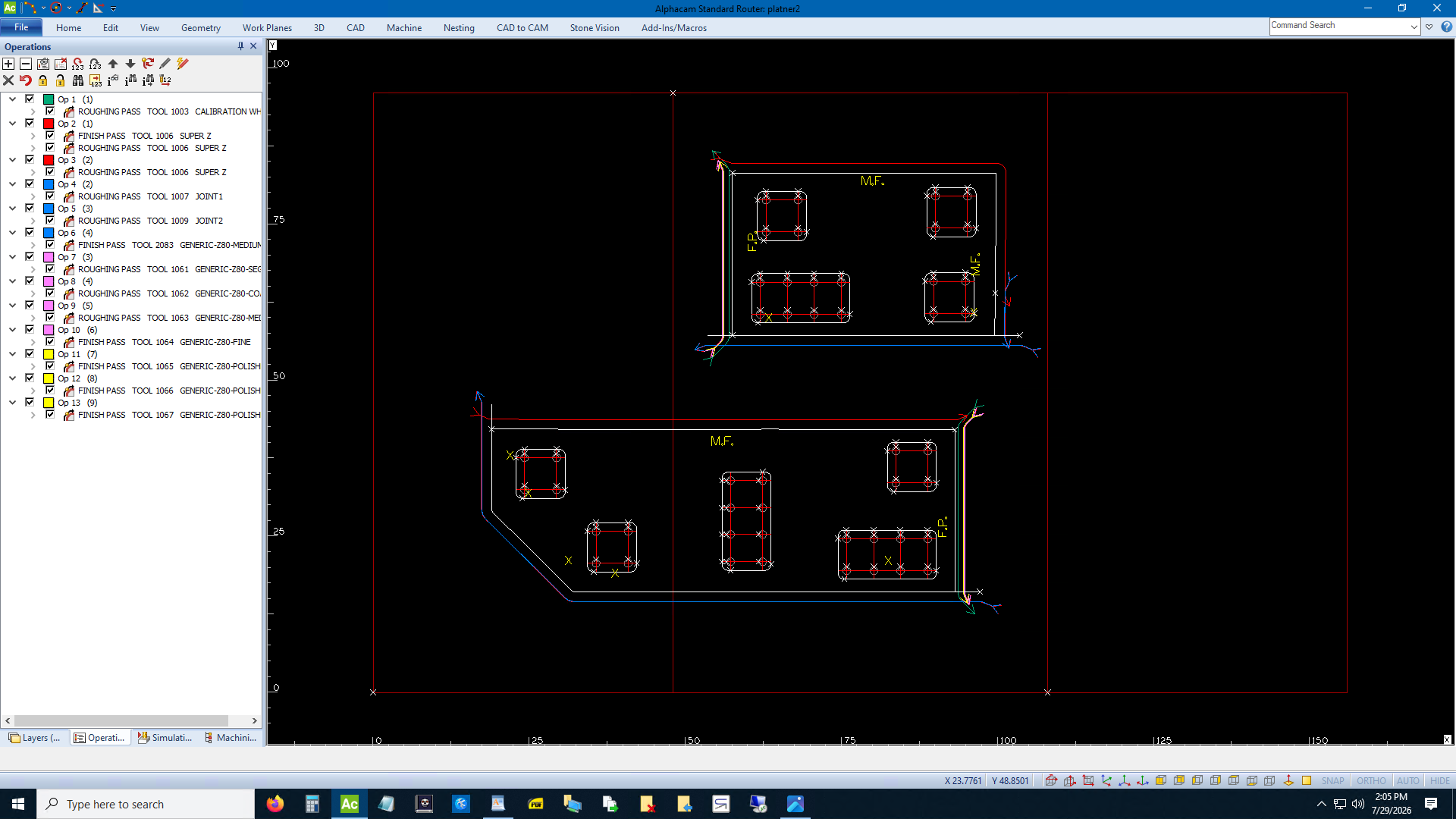
Save that and close it. Draw a platner edge. Go measure a sample or copy mine. Whatever. Save it somewhere where you'll remember where it is. Call it platner.ard or something.
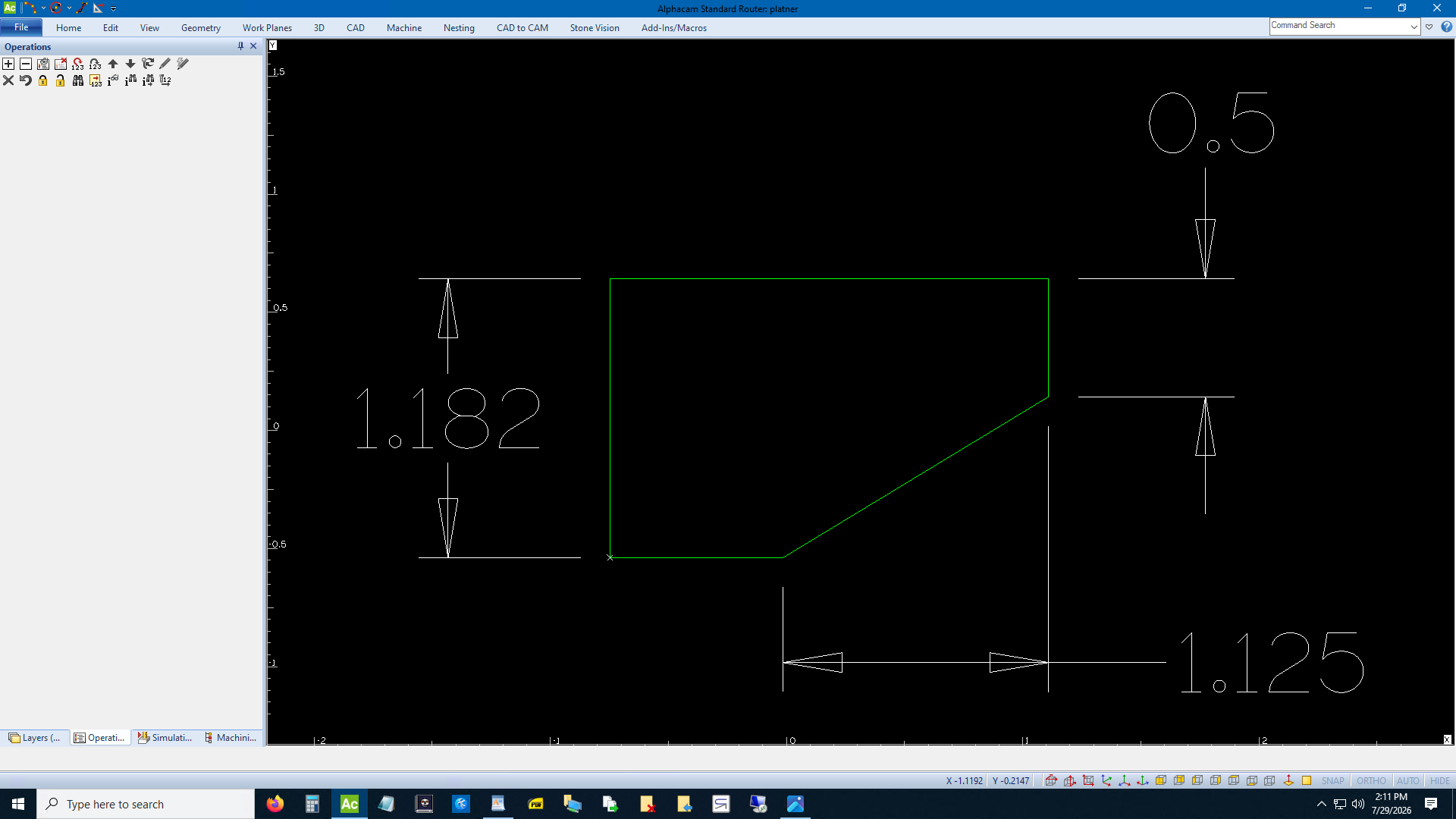
Go back to your CNC program. Insert the platner drawing. Mirror it vertically and explode it.
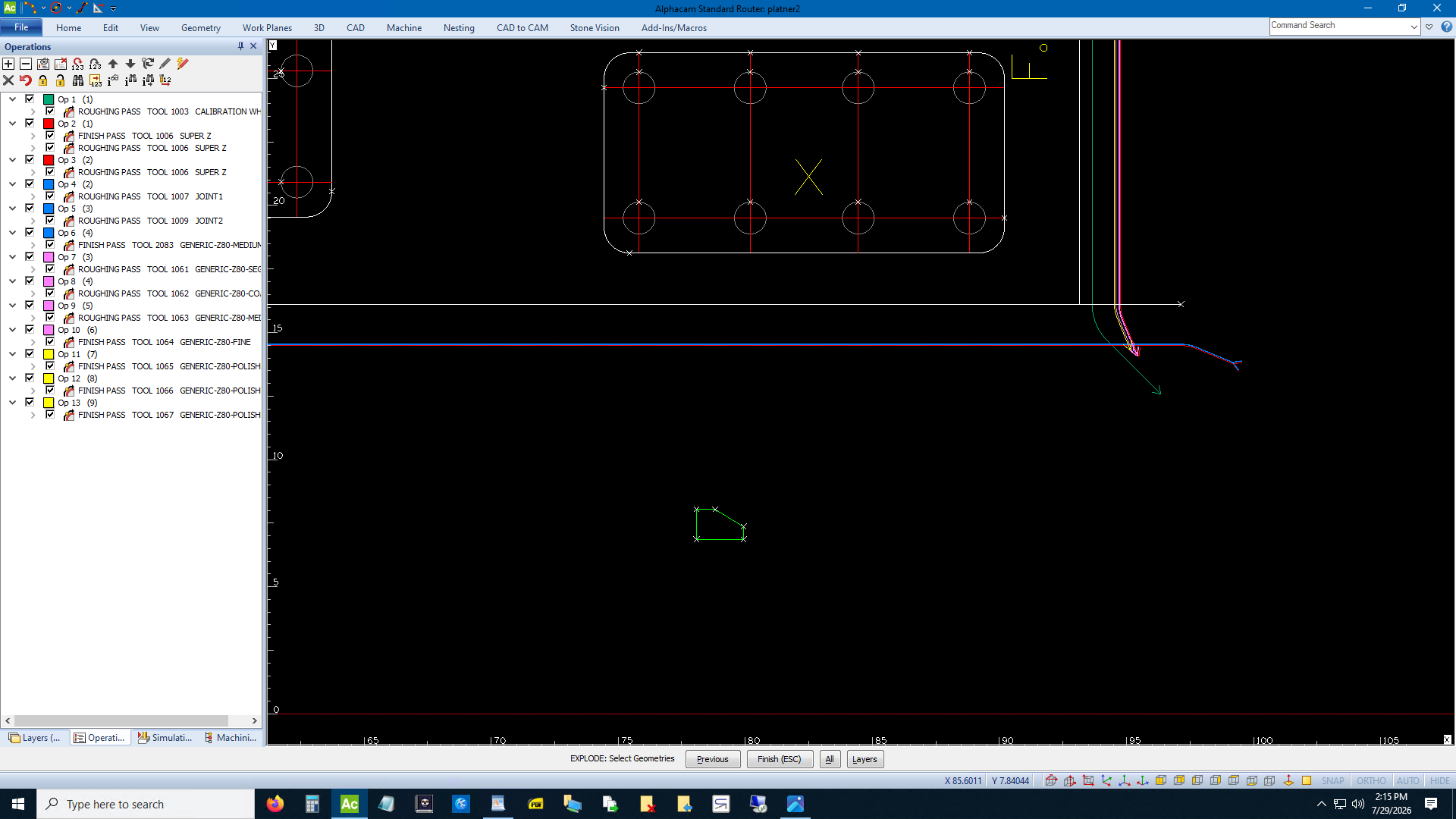
Whoopdee doo. Now turn off all your toolpaths so you can see what you're doing. Go to Machine -> Select Tool. Find your calibration tool. Make sure the tool number is correct. Make sure the diameter is the same as the diameter in reality. That's important.
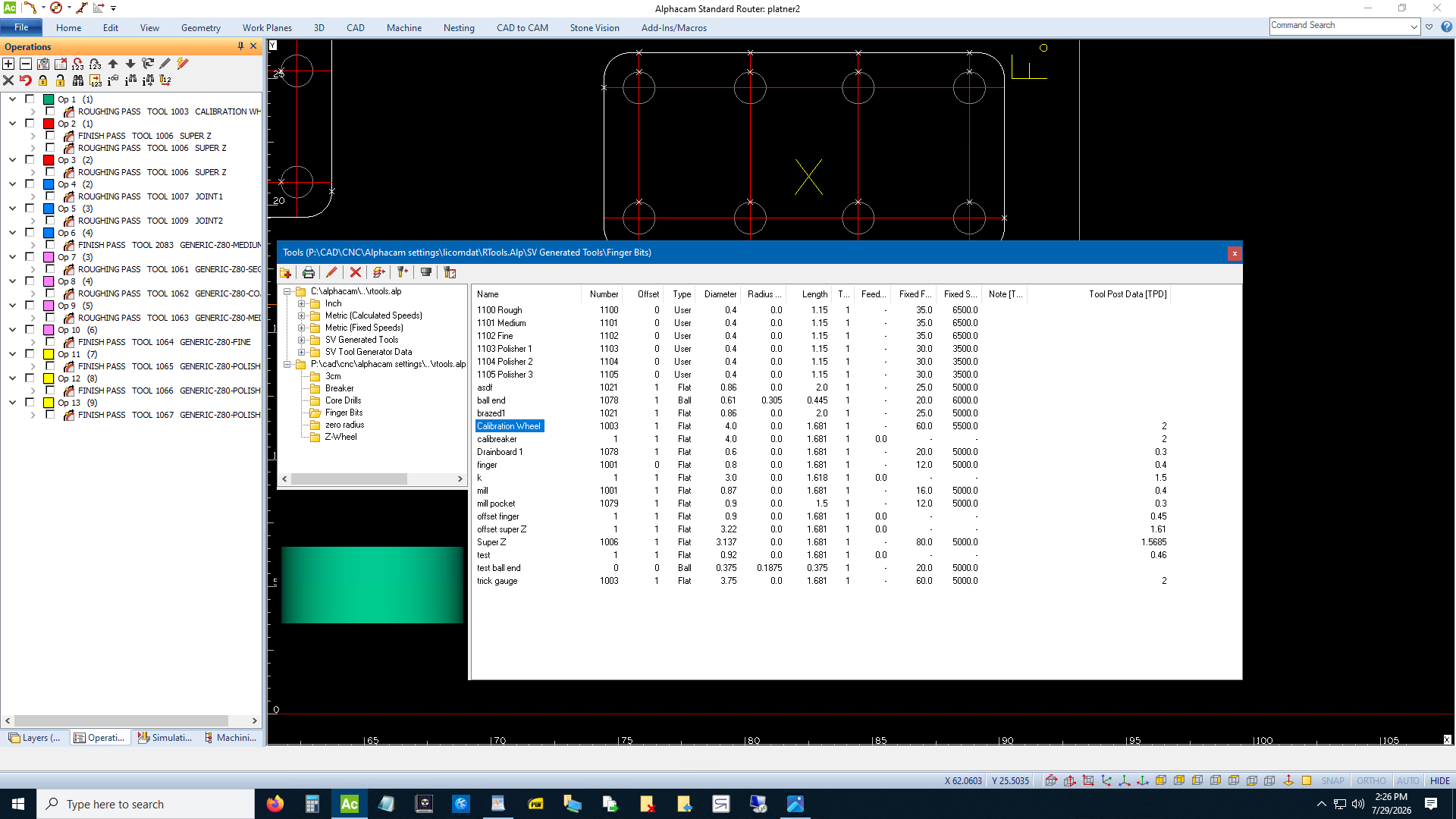
Double click it and then click again to confirm your selection. Now go to Machine -> Rough or Finish. Pick profiled in that first screen. Pick Tool Center in the 2nd screen. That's why your diameter has to be right. Maybe you can do this with Machine Comp, who cares. Pick a rapid level that makes sense and Material Top that makes sense. Check Bi-Directional. Put 0.06 in both of those boxes. If you put anything smaller it will turn out smoother but it will take forever and it's not worth it. If you're in a big hurry and you don't care if it's more jaggedy try numbers larger than 0.06. Don't do lead ins. Then put in a fast cut feed and tell them to start slow at the machine and figure it out.
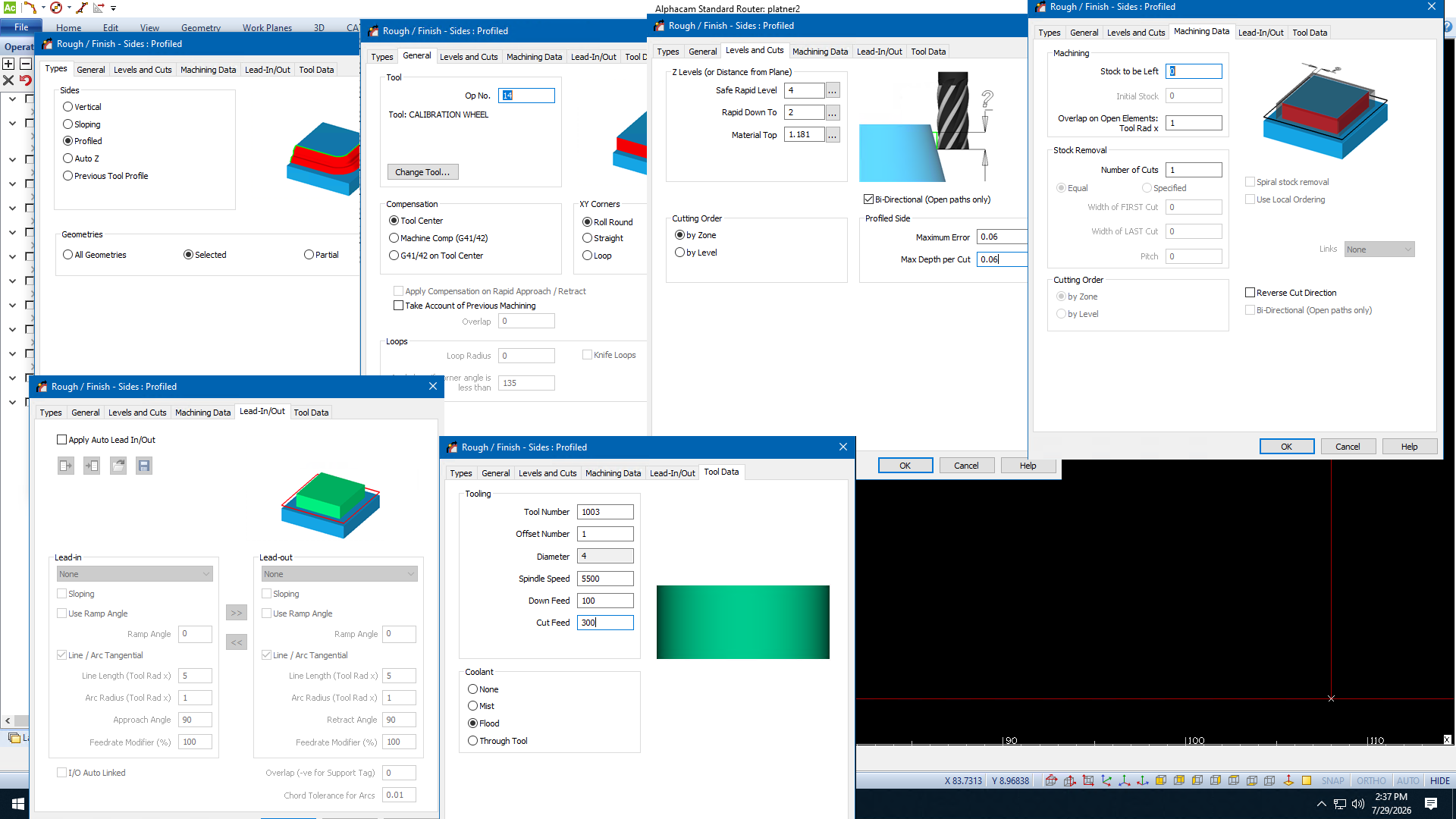
Whew. Alright, hit OK and it will say Pick Side Profile. Pick the diagonal line, the platner part. Our joint tools aleady took care of the front edge.
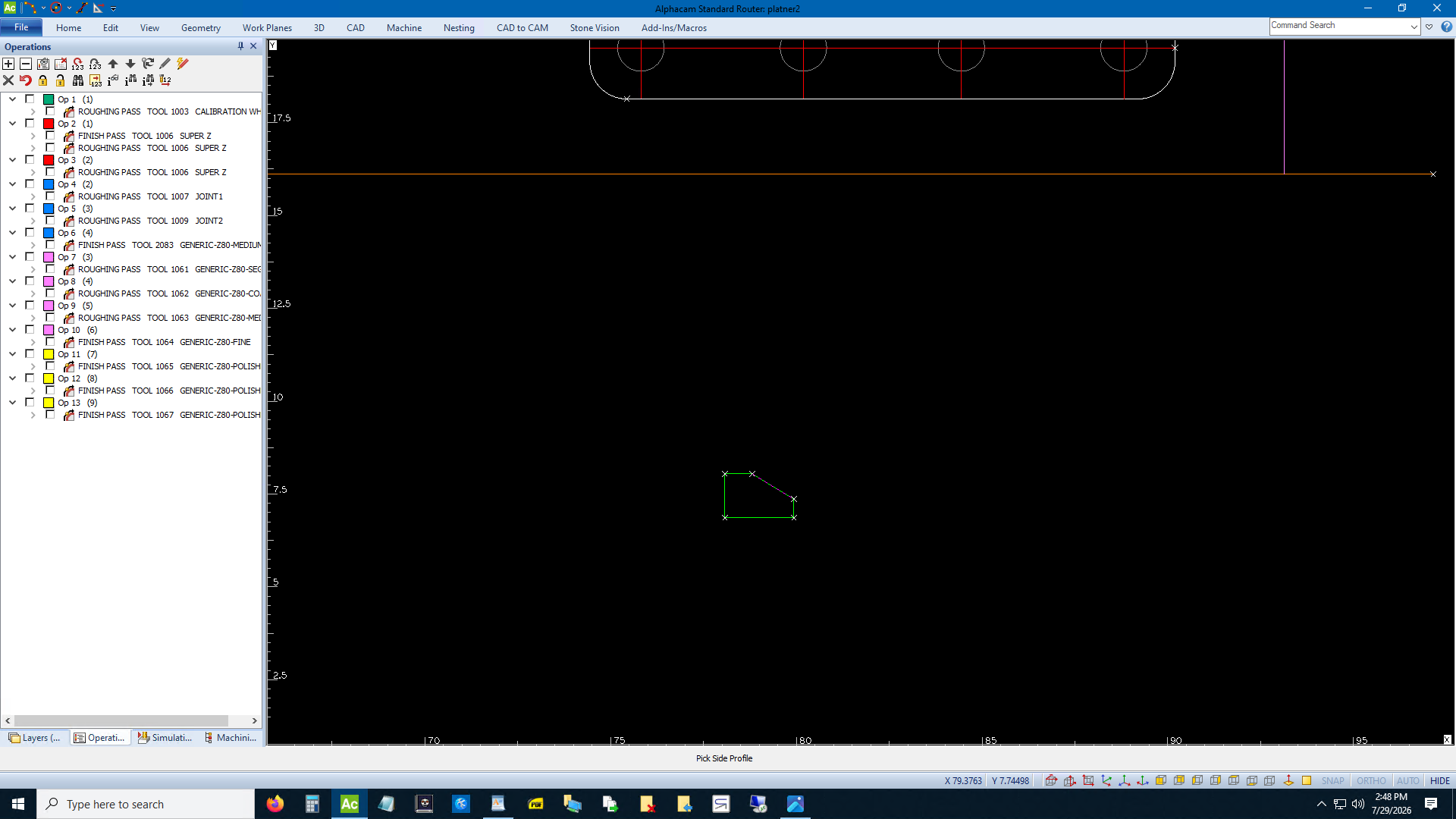
Okay then it says Pick Profile / Geometry Reference point. Hit F9 and pick the intersection that's basically the top, outer edge of your stone.
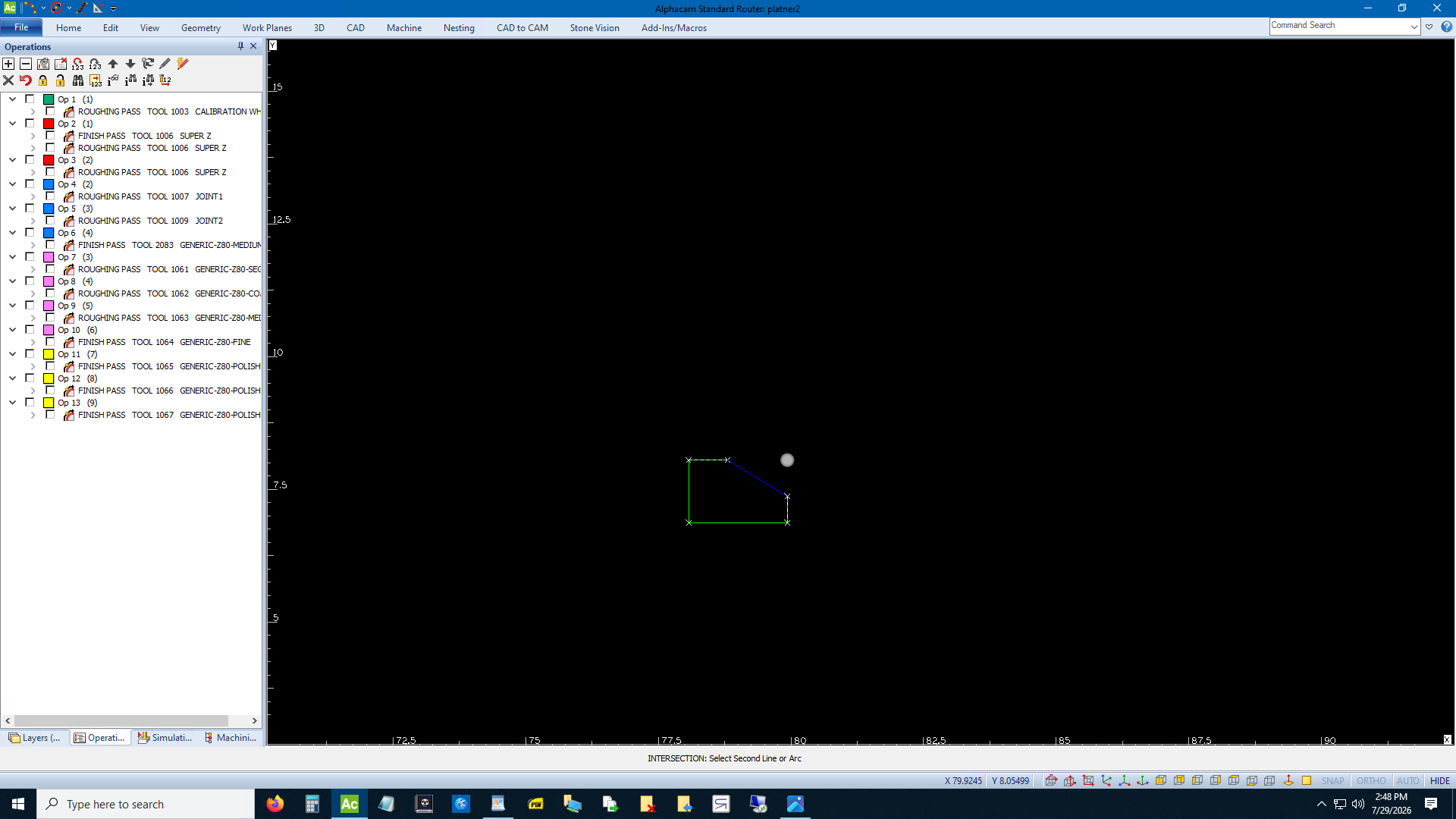
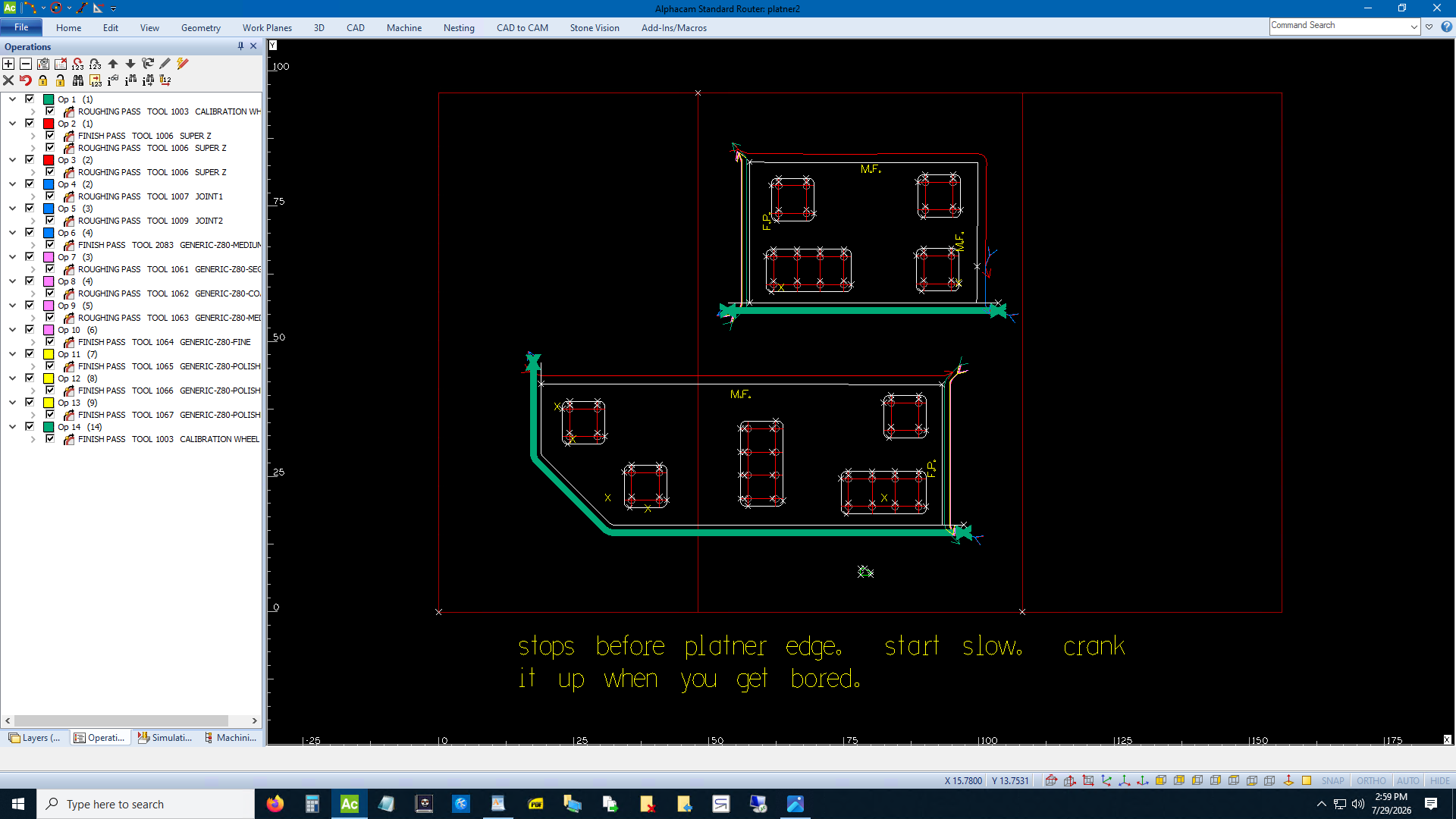
Then pick your orange lines and you're pretty much done. Make this the last operation in your Operations tab and put a stop on the tool before it. Write a note in the program or on the printout or whatever.
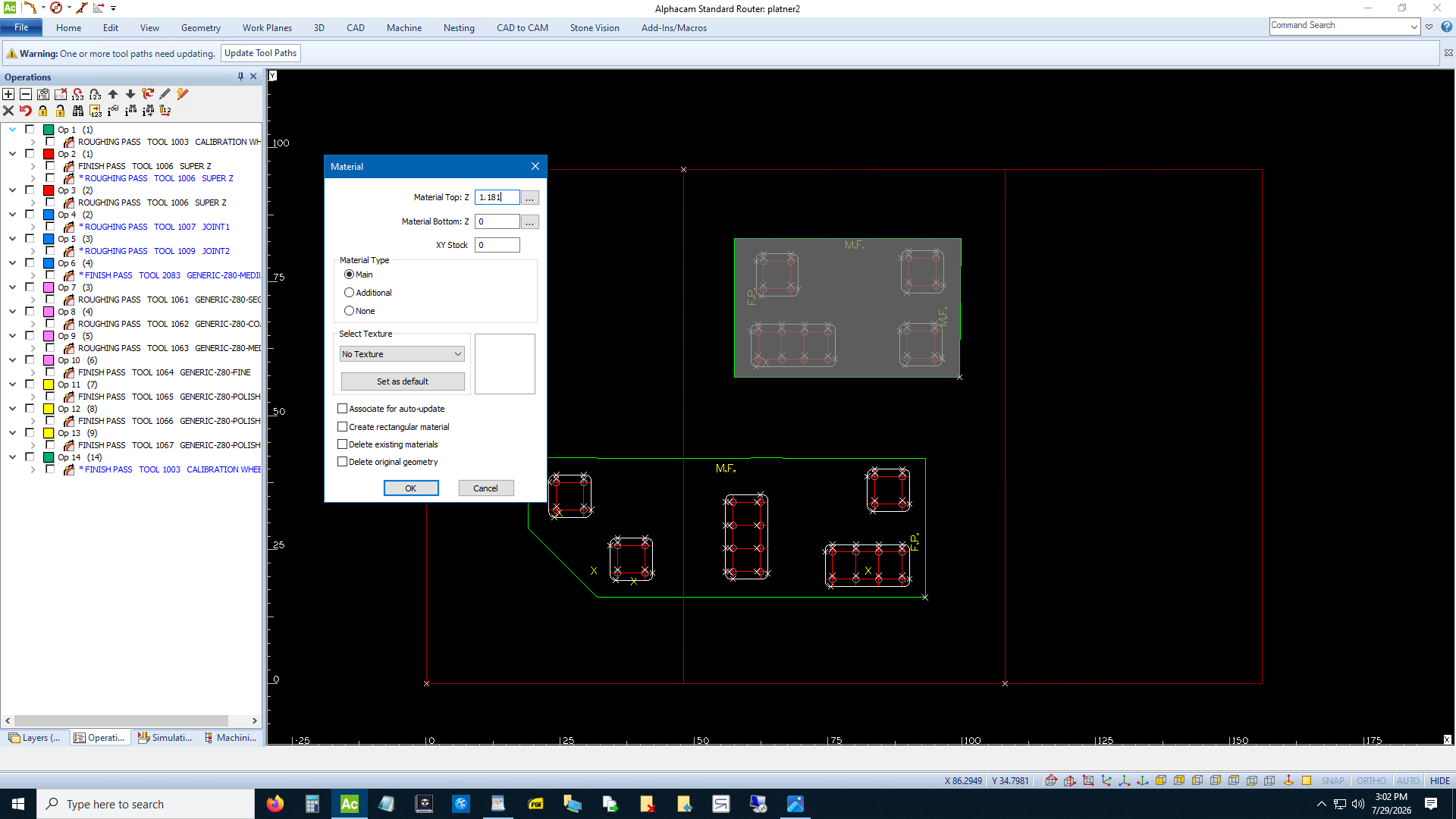
Always watch a simulation. If you did something stupid this is the best way to find out. Save first. Then trim and fillet until you have two solid pieces. Delete any garbage that gets in the way or makes the simulation not work. Go to 3D -> Set Materials and pick the pieces one at a time. Enter 1.181. Make the first one Main and the rest additional.
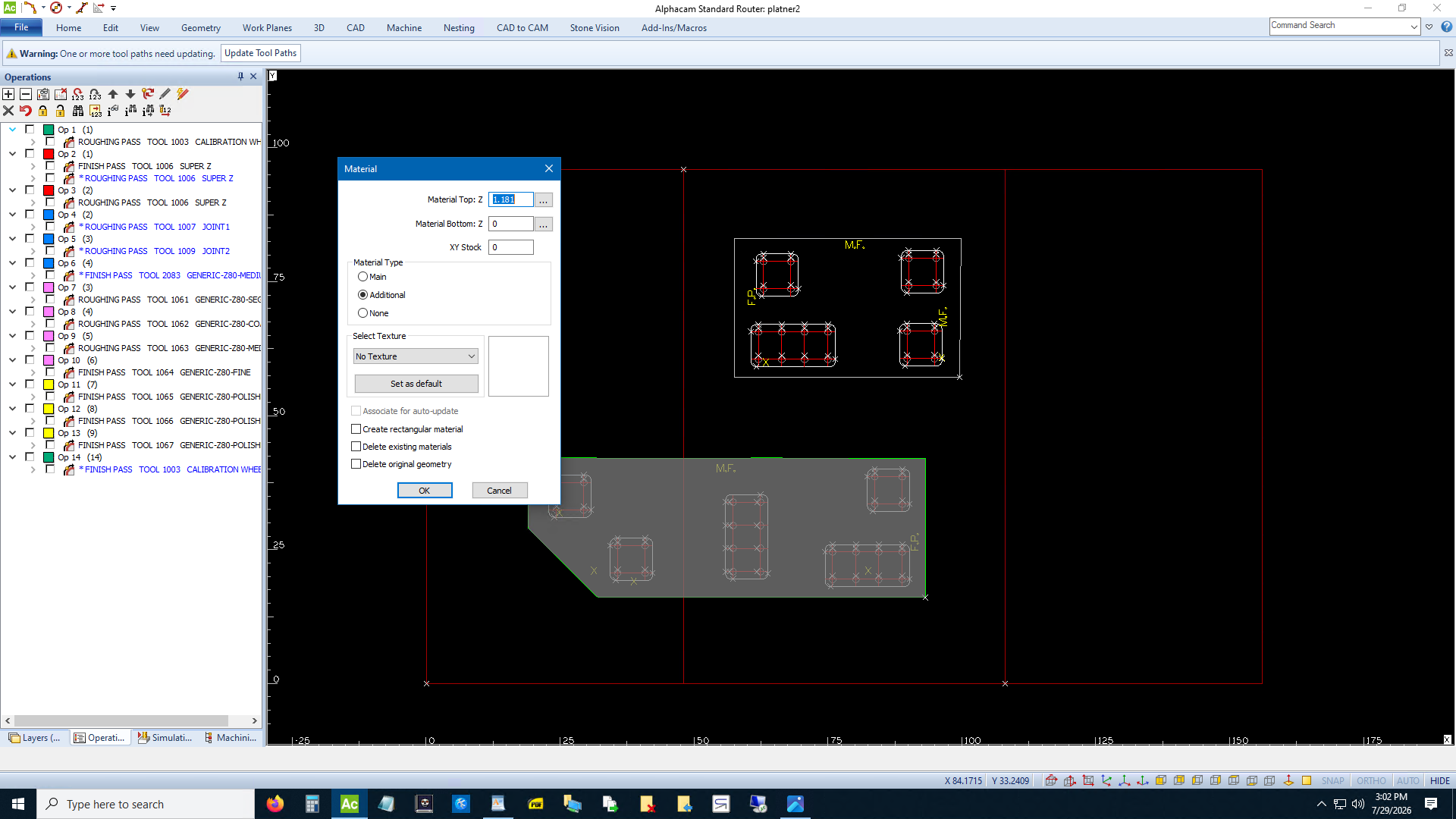
Turn on only your platner toolpath. Turn on Shade/Solid Simulation. Kick it into View -> 3D Views. Hit play.
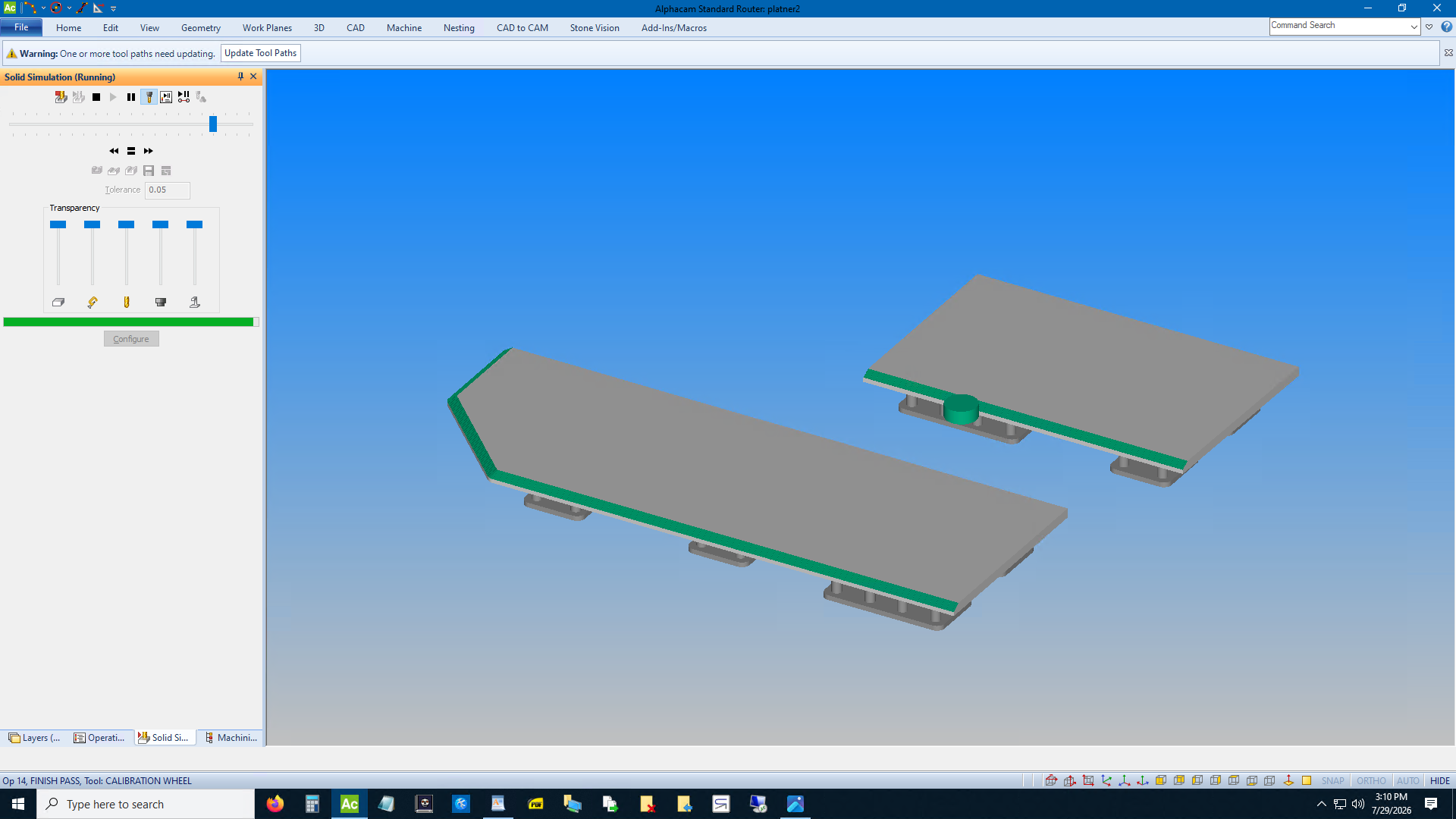
If it looks like platner, you're done. Don't save and overwrite with your material layers. www.silicatewastes.com
If you can't read an image right click and Open Image in New Tab.