How to use:
The FILTER Button
The BLANCO Button
The UPLOAD Button
General Site Info
Weaselware:
Instructions
Advanced
Life advice:
Passwords
How to do:
The Platner Edge
A Drainboard
coming soon:
One weird trick to keep pieces from moving while milling sinks.
Suction cup companies hate it!
Also, TOP 10 ways to make banana bread from dried up old banana peels.
#8 will BLOW YOUR MIND
Type a 6 digit blanco model number into the filter box and hit the BLANCO button to turn on the blanco filter. The blanco filter finds all the blanco model numbers that get the same cutout. You can see them displayed in the right column.
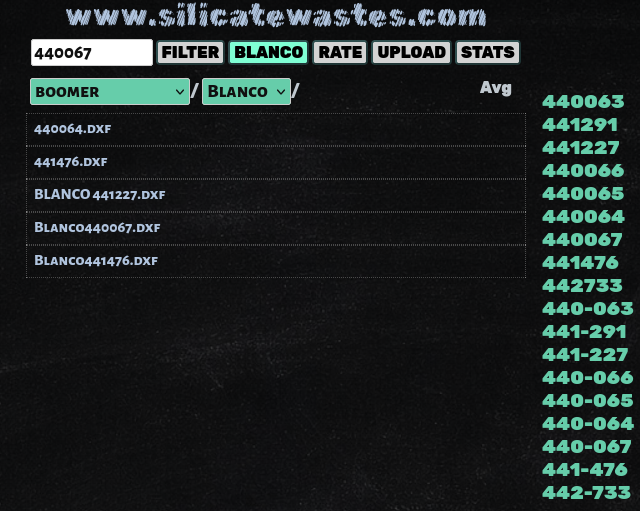
From here onward it behaves just like the FILTER button except that instead of filtering by what's in the filter box, it's filtering by all the strings listed in the right column. Go read the FILTER button help page to understand it.
That's pretty much it. It searches for all the six digit strings and it also searches for the same string but with a hyphen in the middle. You can see above it found '441476.dxf' and also 'Blanco441476.dxf' because they both contain that string. Below I switch to the ~Estrada legacy folder and it found 'BLANCO_441-476.ard' because it contains the string '441-476'.
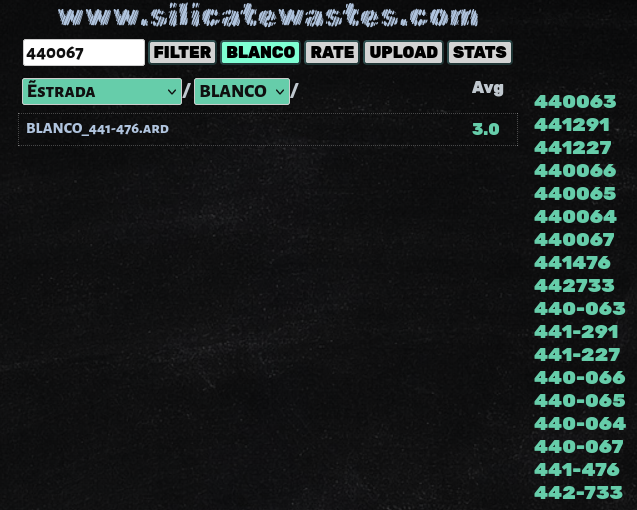
So keep all that in mind when you upload Blanco sinks. The filename has to have the six digit model number in it in one of those two formats for the blanco filter to find it. Also keep in mind it doesn't really search for Blanco sinks. If there was an Ekay 441476 then that would have popped up in this search.
This is the list it uses to find matching model numbers. Feel free to download it:
https://www.silicatewastes.com/static/blanco.txt
If you see I'm missing any sets or numbers let me know. www.silicatewastes.com
If you can't read an image right click and Open Image in New Tab.